August 25th, 2025
New
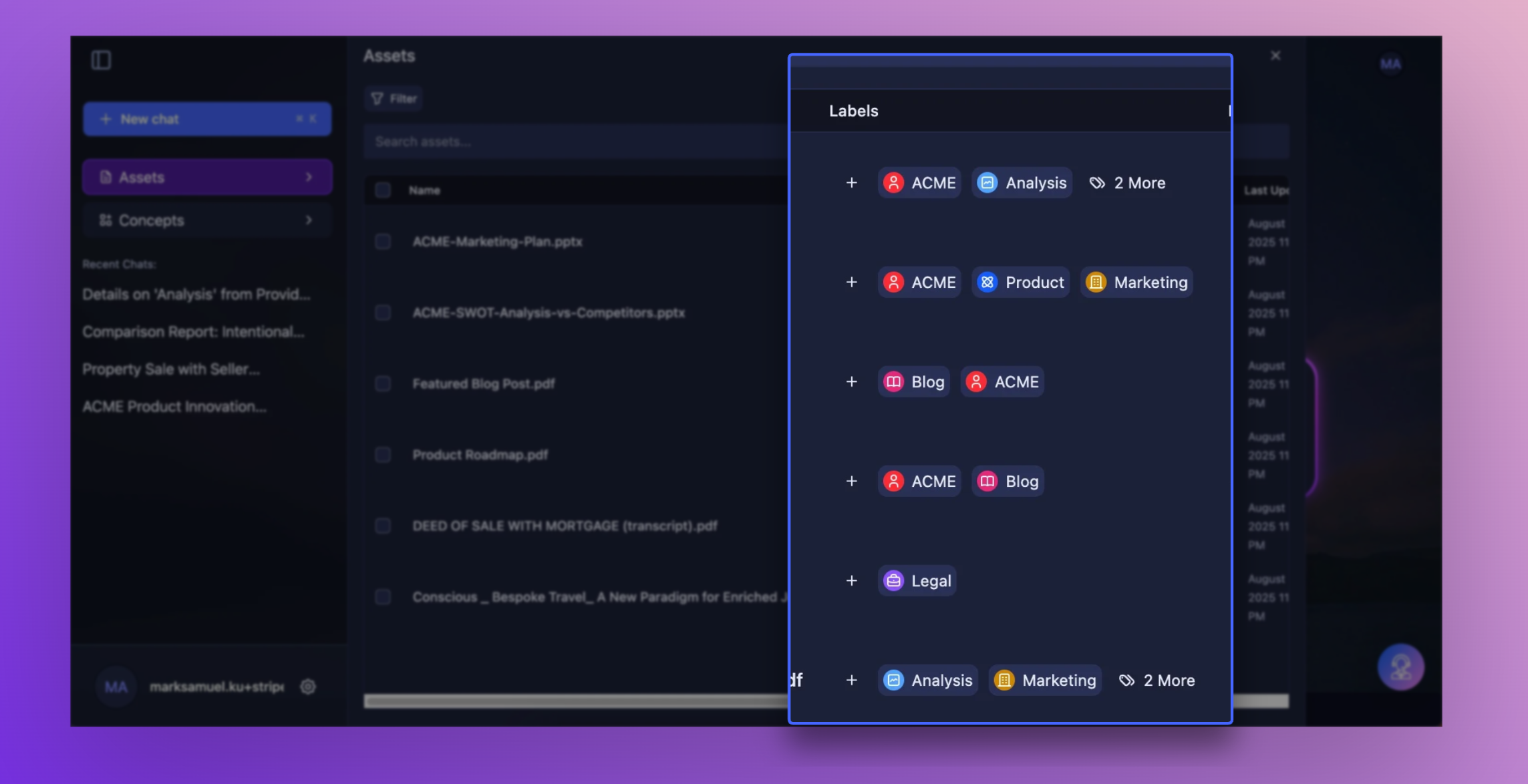
Label your assets and choose which model responds
Hi there! 👋
In this release, we’re giving users more control over how they want to experience AI with Storytell by allowing users to group files using labels and allowing to pick which model to respond.
🏷️ Storytell Labels

Create custom labels to organize your assets, then use them to filter, search, and scope your SmartChat™ conversations
The problem this solves: We've all been there—drowning in files, screenshots, and documents with no good way to organize them. Folders feel too rigid, search feels too random. Labels are the perfect middle ground.
How it works:
Create labels with custom names, colors, and icons (think "Client Work," "Research," "Personal Projects")
Tag any asset with multiple labels as needed
Use label-name in your prompts to scope conversations to specific content
Filter your asset library by any combination of labels
Pro tip: Start with broad categories like "Work" and "Personal," then add specific project labels as needed. The system grows with you.
Get started here: Labels overview
🗨️ Choose your AI Model

Choose and see which AI model you want Storytell to use for your conversations, or stick with auto and let Storytell decide which one to use!
What this means for you: No more wondering which AI is responding or feeling stuck with whatever model we picked. Want the latest Claude for creative work? Prefer GPT for analysis? Now you choose, and Storytell remembers.
How it works: Look for the model selector in your chat interface—it's a clean dropdown that shows all available options like Claude 3.7 Sonnet, GPT-4.1, Gemini 2.5 Pro, and more. Pick your favorite, and we'll save that choice for future sessions.
Perfect for: Teams with specific model preferences, users who want consistency across projects, or anyone who's curious about how different AI models handle the same task.
Get started here: Overriding the Dynamic LLM Router